Showing posts with label PC-Tutorials. Show all posts

Monday, 21 March 2016

How to Transfer Videos from Your PC to iPhone without iTunes

How to Transfer Videos from Your PC to iPhone without iTunes

How to Transfer Videos from Your PC to iPhone without iTunes

The built-in Videos app in the iPhone is shockingly barebones. To me, it’s almost useless. Like many geeks, I’ve taken the time to manually bundle in all the stock iOS apps I find no use for in a folder and send it to the last screen. Apps like Watch, Stocks and yes, Videos are one of them.
If you’re like me, you download movies from the Internet, and they usually come in MP4 or MKV format. But of course, I can’t just transfer these files to my iPhone or iPad and expect them to play as is. I could buy the $15 Mac app called WALTR and let it convert every video on the fly. But I don’t have the patience to attach the iPhone every time I want to transfer a video file.

So I do it wirelessly. On my iPhone I use VLC, and on my iPad I use Infuse (because it has an awesome media center interface that works best on the iPad).
If you’re also looking for a really easy, wireless way of transferring video files to your iOS device – well, good news – you’ve come to the right place.
  • VLC on iOS has an iffy past. Its history is riddled with sudden takedowns from the App Store, but it looks like its current incarnation is here to stay. I’ve been using it for the past six months without any problems.
  • I’d say VLC is the best option for syncing and playing video files on iOS devices because not only is it free based on an open source project, but it will basically play any kind of file you throw at it. Yes, even on the iPhone.
  • To transfer the video file you’ll first need to make sure both your computer and the iOS device are on the same Wi-Fi network.
  • Then open the VLC app on your iPhone, and tap the red traffic cone icon we’ve come to adore over all these years.

From the sidebar tap the “Sharing via WiFi” button.

It will now change to show an IP address and a “.local” address.
Go to your PC, and in a modern browser like Chrome, type in either of those addresses in the URL bar.

This will take you to a page where you can either select the video files you want to transfer using the “+” icon or just drop in the files.

Any file you drag and drop will instantly start transferring to your iOS device.
One interesting thing about this feature is that it even allows you to transfer any file from the VLC app on the iOS device to your desktop as well.
Note: VLC is chock-full of ways to transfer files to the app. You can use the iTunes app, connect to any server on the PC (Including Plex) or just copy any file from a locally-shared network. I’ve used the Wi-Fi method here because it’s the most accessible and easiest to use.
With Infuse, the process is slightly different.

After launching the app, tap the “three dotted menu” button on the top-right and then select “Add files.”

This will bring up a list of all the different ways you can add files, from shared servers to iTunes Sync.

In our case, tap the “via Browser” button.

Again, you’ll see two different kinds of IP addresses.
Go to your desktop and enter one of these addresses in your browser.

Either use the “+” button to add files or just drag them in the page to start the transfer.

Once the transfer is done, you’ll be able to see the file in the app.
The only reason I’d recommend Infuse is because of its UI, especially on the iPad. Infuse will automatically add metadata, cover art and things like synopsis for every file you add. It will even automatically sort TV shows into seasons and episodes. Plus, Infuse has great features like automatic subtitle download.
But as I said, if you’re looking for simplicity, you can never go wrong with VLC.

Hope you like the article(How to Transfer Videos from Your PC to iPhone without iTunes). Kindly share.
How to Add Multiple Clocks in Windows 10 for Different Time Zones

How to Add Multiple Clocks in Windows 10 for Different Time Zones


How to Add Multiple Clocks in Windows 10 for Different Time Zones

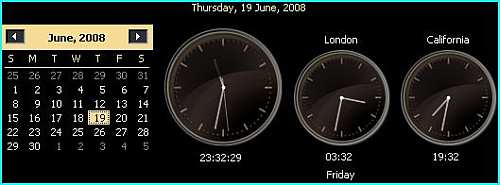
In this post we will show you the basic process of adding additional clocks in Windows 10 and also a few neat Windows 10-only tricks to be more productive while keeping up with different time zones.
Apart from your local clock, you can add up to two additional clocks to keep up with different time zones. To do so, click on time and date in the system tray on the far right corner. Time and a calendar will open with the “Date and time settings” option below. Click on “Date and time settings.”

In date and time settings you will see options to customize your local time clock. If you scroll down, you will see te “Add clocks for different time zones” option. Click on it.

A new dialog will open where you will see two clocks to be configured. Check the checkbox next to the “Show this clock” option to enable and configure that clock. You can select a time zone for that clock and also name it to easily remember what time it will show. If you want to use the other clock as well, check “Show this clock” and configure it according to your needs.

When you are done, you will see the time from both of these clocks by hovering your mouse cursor over the time and date in the system tray. You can also click on time and date to view these clocks.


Having access to two clocks is great, but what if you could add as many clocks as you would like? In Windows 10 you can pin any number of clocks to the Start menu with time from different cities.
For this, click on the Start menu and then click on “All apps.” Now click on the “Alarms and Clock” app which should be at the start of the list under the “A” section.

In the Alarms and Clock app move to the “World Clock” tab, and you will see a world map with your local time highlighted on it. Click on the “+” sign at the bottom right corner, and you will be prompted to enter a location.

Here you can enter the name of the city/state you would like to see the time for; if it is not mentioned in this list, try selecting a area closer to your desired city/state. As soon as it is selected, the current time in that area will be displayed on the world map. You can keep repeating this process to add as many time zones as you would like.

Once you are done adding time zones, you can easily pin them to the Start menu. Just right-click on them and select “Pin to Start” from the menu. The time will be added to the Start menu as a live tile, and you can view it at any time from the Start menu. Keep repeating this process to add all the required time zones to the Start menu.

Note: while viewing time in the Start menu, it may take a few seconds to update the current time and show it to you as a live tile.
The above methods are great for keeping up with the time zones that matter to you, but what if you suddenly need to check the time in an area that has not been pre-configured by you? Checking the World Clock or doing a search in your browser might be the answer, but there is a faster alternative as well.

You can directly ask Cortana to show the current time in any area. All you have to do is type “time in (your desired area),” and she will instantly show you the time. For example, type “time in california,” and you will see current time, date and day in California.

Keeping up with time zones is really easy in Windows, and Windows 10 just made things easier. The first method works fine in Windows 7 and 8 as well, and it is still the quickest method to seeing the current time in a different zone. Although, if you want to keep up with more than two time zones, then the second method will surely help the Windows 10 users.

Wednesday, 16 March 2016

QARK SOFTWARE – Scans several security related Android application vulnerabilities

QARK SOFTWARE – Scans several security related Android application vulnerabilities


 QARK SOFTWARE – Scans several security related Android application vulnerabilities

QARK also knows as Quick Android Review Kit used to scan several security related Android application vulnerabilities, either in source code or packaged APKs.
This tool can create “Proof-of-Concept” deployable APKs and ADB commands, capable of exploiting many of the vulnerabilities it finds.
You don’t need to root the test device, as this tool focuses on vulnerabilities that can be exploited under otherwise secure conditions.

Requirements:

  • Python 2.7.6
  • JRE 1.6+ (recommended 1.7+)
  • OSX or Ubuntu Linux (others may or may not work)

How to use:

Download QARK and to run in interactive mode:

  • python qark.py
  • To run in headless mode:
  • python qark.py --source 1 --pathtoapk /Users/foo/qark/sampleApps/goatdroid/goatdroid.apk --exploit 1 --install 1
  • or python qark.py --source 2 -c /Users/foo/qark/sampleApps/goatdroid/goatdroid --manifest /Users/foo/qark/sampleApps/goatdroid/goatdroid/AndroidManifest.xml --exploit 1 --install 1

Documentation:

QARK is an easy to use tool capable of finding common security vulnerabilities in Android applications and 100% free to use. QARK allows security reviewers to locate precise, in-depth explanations of the vulnerabilities. QARK automates the use of multiple de-compilers, leveraging their combined outputs, to produce superior results, when de-compiling APKs.
The major advantage QARK has over traditional tools, that just point you to possible vulnerabilities, is that it can produce ADB commands, or even fully functional APKs, that turn hypothetical vulnerabilities into working “POC” exploits.
Included in the types of security vulnerabilities this tool attempts to find are:
  • Inadvertently exported components
  • Improperly protected exported components
  • Intents which are vulnerable to interception or eavesdropping
  • Improper x.509 certificate validation
  • Creation of world-readable or world-writeable files
  • Activities which may leak data
  • The use of Sticky Intents
  • Insecurely created Pending Intents
  • Sending of insecure Broadcast Intents
  • Private keys embedded in the source
  • Weak or improper cryptography use
  • Potentially exploitable WebView configurations
  • Exported Preference Activities
  • Tapjacking
  • Apps which enable backups
  • Apps which are debuggable
  • Apps supporting outdated API versions, with known vulnerabilities

Roadmap:

Things that will be added soon:
  • Rewrite of code to support extensibility
  • Bound Service vulnerability detection and exploitation
  • Content Provider vulnerability detection and exploitation
  • Additional WebView configuration demonstrations
  • Static Tapjacking mitigation detection
  • File browser capable of using root permissions
Note: QARK decompiles Android applications back to raw source code. Please do not use this tool if this may be considered illegal in your juristdiction. If you are unsure, seek legal counsel.
If you run into issues on OSX, especially relating to the outbound call to the Play Store, or the downloading of the SDK, it is likely due to your Python/OpenSSL configuration and the fact that recent changes in OSX impacted Python installed via brew. Nuking your Python installation(s) and re-installing from source may fix your issues.

For more information about QARK you can visit GitHub and download this tool from official page
Bohatei – Free DDoS Hacking defense tool

Bohatei – Free DDoS Hacking defense tool


 Bohatei – Free DDoS Hacking defense tool

Bohatei, a free DDoS defense tool that works using SDN and NFV. This tool defense 500Gbps DDoS attack and successfully handle any dynamic attack scenarios.

Features and File information:

  • An implementation of the FlowTags framework for the OpenDaylight controller
  • An implementation of the resource management algorithms
  • A topology file that was used to simulate an ISP topology
  • Scripts that facilitate functions such as spawning, tearing down and retrieving the topology.
  • Scripts that automate and coordinate the components required for the usecases examined.
The folder “frontend” contains required files for the web interface. For the experiments performed, we used a set of VM images that contain implementations of the strategy graphs for each type of attack (SYN Flood, UDP Flood, DNS Amplification and Elephant Flow). Those images will become available at a later stage.
The tools that were used for those strategy graphs are the following:
For more information about Bohatei you can visit GithubYou can check out Bohatei papers here and slides here.

Free Download: Bohatei (from github)

Saturday, 5 March 2016

PC Whatsapp: Learn How to Use Whatsapp Messenger on PC

PC Whatsapp: Learn How to Use Whatsapp Messenger on PC


http://computerguruslodge.blogspot.com.ng/

Learn How to Use Whatsapp Messenger on PC

These days Whatsapp has taken over all the messengers available in the market and because of simplicity and easy to use features, whatsapp is most popular messenger amongst all available chat applications over internet. But Whatsapp can be used only through smartphone, but lots of us are facing below problems before using Whatsapp application.
  • Don’t have Smartphone?
  • Don’t have Wifi internet connection or Data-package in phone?
  • Don’t like to chat from Mobile because of slow Typing Speed?
  • Mobile hang because of heavy data and hundreds of Chat messages in Whatsapp?
Friends, don’t worry, Now I will teach you how to Use Whatsapp Messenger free on PC or Computer or Laptop, even if you don’t have a smartphone.

Install Whatsapp on your PC using Bluestack

  • Free Download and Install Bluestack Android Imulator
  • On Bluestack home page, click Search icon on top right corner
use whatsapp on computer pc laptop free
  • Find Whatsapp from the search application list
  • Click Install button
  • Once Whatsapp Messenger Installed, Start the application in Bluestack
whatsapp verification computer pc laptop

  • Enter your mobile number when prompted
  • Whatsapp will try to verify Mobile inside Bluestack but it will fail, don’t panic as it will ask you to verify
  • Verify your Mobile number by entering 6 digit verification code
  • Once verification is done, you are ready to use Whatsapp messenger on your computer or laptop

Some Facts of using bluestack to run Whatsapp on PC:
  1. Works on Windows XP, Windows Vista, Windows 7 and 8 as well as Mac systems.
  2. Bluestack needs powerful computer with higher RAM and possibly dedicated graphic Card to run apps smoothly
Hope this tutorial taught you How to use Whatsapp Messenger on computer, PC or laptop.

Thursday, 3 March 2016

Top & Best Hidden Windows Tricks 2016

Top & Best Hidden Windows Tricks 2016

windows hidden tricks 2015

Recently Microsoft has launched their new OS, Windows 10 by making the customers to wait eagerly! Windows 10 got some bugs along with lots of hidden features with it! This one has changed the total interface of operating system and loaded with fully unique features. Anyhow some folks don’t have much idea about Windows 10 hidden tricks 2015. So I’ve planned to share this info with this article! Hope you will enjoy it!
Here’s some Windows 10 Hidden Features and additional entries! Let’s check it out!

   1. How to Change the taskbar color in Windows 10?

>> Jump to your desktop and right click to open the option Personalize.
>> Then click the Colors and choose your desired color. These changes will be made on both Start Menu and on Taskbar. If you want you can go with automatic option “Automatically Pick an accent Color” which will set you a matching color for your desktop and make your desktop looks awesome!
   2. How to Add folders to the Start Menu in Win 10?
>> Just Right-click the desktop and Select Personalize.
>> Then click the Start and select “Choose which folders appear on Start.” That’s it!
   3. How to Remove tiles from Start Menu in Windows 10?
>> Click the Start button and right click on the tile you want to remove.
>> Then choose “Unpin from Start” found down below to remove the tiles from Start Menu!
   4. Tweak on Start Screen in Windows 10
>> Again Right-click the desktop and choose Personalize.
>> Then Select Start to Turn on “Use Start full screen”. That’s it!
   5. How to change the Notification Settings
>> Click the Start button and navigate to Settings.
>> Then click the System and select “Notifications & actions.”
>> Now just pick your desired settings to get as notifications.
   6. How to Turn on Inactive Page Scrolling?
>> Go to Settings and click Devices.
>> Then select ‘Mouse & Touchpad’.
>> Then just check the ‘Scroll in-active windows when I hover over them’. That’s it!
   7. How to Turn on “Hey Cortana” in Win 10?
>> Select the Notebook option and go to Settings.
>> Now just turn on “Hey Cortana! That’s it!
   8. How to Create God-Mode in Windows 10?
>> Create a new Folder on your Desktop.
>> Then rename that folder to
“GodMode.{ED7BA470-8E54-465E-825C-99712043E01C}”
>> That’s it! Now you should have seen an icon labeled as God Mode 
   9. How to Change Default Search Engine in New Edge Browser?
>> Run the Edge browser and select the button with three dots.
>> Then go to settings and choose “View Advanced Settings”.
>> Now just Pick a search engine by using drop down menu “Search in the address bar with”.
   10. How to Disable automatic restarts in Windows 10?
>> Go to Settings and jump to “Update & Security.”
>> Then just click the Windows update option.
>> The choose “Advanced Options” and select “Notify to schedule restart” from drop-down menu. That’s it!
And we got you a list of some usable Windows 10 Shortcut keys!
WIN + G [Game Bar]
WIN + X [Start button context menu]
WIN + K – [Connect Wireless devices]
WIN + H – [Share content]
WIN + A – [Open the Action Center]
WIN + I – [Open Settings app]
WIN + S – [Search Windows]
WIN + C – [Voice Search Windows]
WIN + D – [Reveals Desktop]
WIN + L – [Lock]
WIN + SPACE – [Change input language]
WIN + Ctrl-Left or Right [Virtual desktop]
WIN + Ctrl + D [Virtual desktop]
WIN + Ctrl +C [Cortana listening]
WIN + Ctrl + F4 [Closes the virtual desktop]

What’s your point about these Hidden Tricks of Windows 10 2016? Do you love it? Do share your experience of using Windows 10 by your own! Don’t forget to share this post! Cheers

Saturday, 27 February 2016

How To Remove Computer Viruses Using CMD

How To Remove Computer Viruses Using CMD

How To Remove Computer Viruses Using CMD

There is the unconventional method to remove a virus from a computer system which includes antivirus programs and firewalls etc. But today we are discussing here a method by which you can easily Remove Computer Viruses Using Cmd. The method is simple and straight. Just read out the below post to proceed.

How To Remove Computer Viruses Using CMD

Actually, the command prompt is a utility program that has an access to reconstruct all the system files, and in this method, we will be using the same access of cmd. This method works on attributes removing which can be one reason of virus. As the most probable reason for the virus to come into your computer is through USB device. So this method works perfectly on USB to remove its viruses and secure your computer.

Steps To Remove Computer Viruses Using Command Prompt

  • First of all click on Start and type cmd. Now right click on a the cmd icon and select run as administrator. Now command prompt window will open, now select your drive which you want to remove a virus.
  • Let the drive be D. So now type “dir D: attrib -s -h /s /d *.*” Now type  then press enter.
  • Note: Capital D is the considered as the drive to be checked you can change the drive according to your needs.
  • Now the command prompt will explore your selected drive and will load all the files on your drive.
  • Now if you notice and unusual file.exe and any of autorun.inf then rename it with the command(rename filename.extension new filename)
  • That’s it now you can access your drives without affecting from viruses.


This method is very cool and efficient and doesn’t require any software just only a simple utility program of your system and simple cmd tricks. Hope you like the post. Don’t forget to share it with your friends.

Thursday, 11 February 2016

Top 6 Best Camera Apps For Your Android Smartphone

Top 6 Best Camera Apps For Your Android Smartphone

Top 10 Best Camera Apps For Your Android Smartphone

In this post, I have prepared the Best Camera Apps  on the basis of their download rankings, user reviews, user ratings and some of my experience.

#1 Paper Camera
This is an awesome camera app. This app provides a number of different paper filters while clicking pictures. The main feature provides by this app is sketch filters which can be either of pencil sketch or other brushed paper filters which can give you a better picture to share with your social media networks. You can wave your phone around and see the world change before your eyes, take pictures and record videos using any of the stylish cartoon effects or apply them to your existing photos


#2 Cymera
This is also very popular camera app of android. This app  allows you to overlay decorations to make photos more fun, or free draw on images. We can alter the faces in this app that is we can make face slimmer, eyes bigger and many much more options provided by this cool camera app.

Features
Automatic face recognition (enlarge eyes/smile/slim)
facelift, Liquify, skin corrections (brightening, whitening, concealers)
200 kinds of natural hair and makeup items
Cymera is the ultimate beauty tool for selfies!

#3 Instagram
This is the most popular camera app. This app implements a feature to direct share the pic in your friend and followers. This app also provides many cool filters which can enhance your picture to the high extent. You can increase your followers how can see your daily updates pictures.

Features
Edit photos and videos with free, custom-designed filters.
Improve photos with 10 advanced creative tools to change brightness, contrast and saturation as well as shadows, highlights and perspective.
Find people to follow based on the accounts and photos they already love.

#4 Flickr
This app is actually from the website Flickr and it is very popular as photo sharing app worldwide. Now coming with a terabyte of storage, it is popular amongst intensive photographers as a way of storing photos to the cloud, as well as providing a level of photo manipulation that includes 16 different filters in it.

Features
Put your free 1000GB to work – auto-upload all your photos and videos, privately storing them in your Flickr camera roll.
 Camera roll in the cloud – instant access to your entire Flickr collection, so you can free up your phone for everything else.
Organization and sharing simplified – browse with ease, select and organize hundreds of photos with one gesture, and share in seconds.
 Unleash your creativity – tweak your photos, add filters, crop images and more, directly from the camera roll. And if you change your mind, just revert the changes!
 Explore, interact and engage with friends, family and the Flickr community – there are millions of groups and billions of photos out there to discover.

#5 Camera ZOOM FX 
This is an another Best Android Camera App. In this app if  download add-ons, there are over 90 that can be added to Camera ZOOM FX, including Frames, Props, Composites and more Compositions which can give a better capturing experience.

Features
● Time Lapse
● Photo Editor
● Photo Gallery
● Touch to Focus
● White Balance
● ISO Levels

#6 Google Camera
This is the camera app developed by the google and is released in this year. This app provides many features like editing, filters and sharing etc.This app is a highly rated app but some of the features in this app will work according to your phone.

Features
Fast switching – Switch quickly between video and photo mode with a quick swipe.
Easy access to photo modes – Easily create stunning photographic effects and switch between photo modes (such as Lens Blur, Wide Angle, Panorama, and Photo Sphere) from the top-left menu
Auto-HDR+ – Google Camera automatically detects when HDR+ (High Dynamic Range + Low Light) should be used to capture great photos in low light and backlit scenes on the Nexus 6, Nexus 5X, and Nexus 6P
Slow motion video – Record slow motion videos in 120fps on the Nexus 5X and up to 240fps on the Nexus 6
SmartBurst – Hold down the shutter button on the Nexus 6P to automatically capture a stream of photos and automatically make GIFs

Friday, 5 February 2016

Someone Hijacks Botnet Network & Replaces Malware with an Antivirus

Someone Hijacks Botnet Network & Replaces Malware with an Antivirus

security tips

The Dridex banking trojan that is widely being used by cyber criminals to distribute malware onto users’ machines has now been found distributing a security software.
A portion of the Dridex banking Trojan botnet may have been hacked or compromised by an unknown Whitehat Hacker, who replaced the malicious links with Avira Antivirus installers.

What is Dridex Banking Trojan? How it Works?


Dridex malware – also known as Bugat and Cridex – is believed to have been created by cyber criminals in Eastern Europe in an effort to harvest online banking details. Even after a high-profile takedown operation in late 2015, the Dridex botnet seems to be active again.

The Dridex virus typically distributes itself through spam messages or emails that include malicious attachments, most often a Microsoft Office file or Word document integrated with malicious macros.

Once the malicious file has been clicked, the macros download and install the main payload of the virus – the trojan program itself – from a hijacked server, which installs and runs on the victim's computer.

The Dridex trojan program then creates a keylogger on the infected machine and manipulates banking websites with the help of transparent redirects and web-injects.

This results in stealing victim's personal data like usernames and passwords, with an ultimate aim to break into bank accounts and siphon off cash.

Hacker replaces Trojan with Anti-virus

However, the recent Hack Surprises: Instead of distributing banking trojan, a portion of the Dridex botnet currently seems to be spreading legitimate copies of the free anti-virus software from Avira, as the company has announced itself.

"The content behind the malware download [link] has been replaced, it is now providing [a legitimate], up-to-date Avira web installer instead of the usual Dridex loader," explained Avira malware expert Moritz Krollreported Reg.
Avira believes that the white hat hacker or hackers may have hacked into a portion of infected web servers using the same flaws the malware authors used and then replaced the malicious code with the Avira installer.

So, once infected, instead of receiving Dridex malware, the victims get a valid, signed copy of Avira antivirus software.

"We still don't know exactly who is doing this with our installer and why – but we have some theories," said Kroll. "This is certainly not something we are doing ourselves."

Although the motives behind including the Avira software is still unclear, these kinds of actions are considered to be illegal in many countries, said Kroll.

What can be done to protect From Malware Attacks?


The guidance for preventing yourself from being a part of the Dridex Banking Trojan botnet is:
  • Ensure you have an updated antivirus program running on your PC, which should be able to intercept the malicious attachments before they are opened.
  • One of the best measures for securing your online environment is to deploy anIntrusion Detection System (IDS) at the network layer, which is especially useful to quickly detect malware and other threats in your network when integrated with a real-time threat intelligence and SIEM (Security Intelligence and Event Monitoring) solution, such as AlienVault Unified Security Management (USM).
  • Be careful of opening email attachments sent from an unknown email address, particularly (in this case) Microsoft Word and Excel files.
  • Disable Macros in MS Office, or at least set the Macros to request permission before they run.
reference: thehackersnews

Tuesday, 2 February 2016

How To Get Facebook Social Toolkit Premium For Free

How To Get Facebook Social Toolkit Premium For Free

How To Get Facebook Social Toolkit Premium For Free
Facebook Social Toolkit is a collection of Facebook automation tools that are created to save your time while using Facebook. But the major problem with the tool is that only few of features are available for free and many of the other very cool features are in reserved for premium version and to upgrade it to premium you have to pay to developers for it. Thats why we are here with a cool solution by which you can get this cool extension in your browser without paying anything. Yes its possible and personally tested by me. And you just need is to follow up the complete guide discussed below to proceed.

The method is quite simple and straight and you just need is patch the social toolkit to use all its premium feature all for free. So follow up the below steps to proceed.


1. First of all remove the extension from your browser if you already had installed this on your Google Chrome.

2. Now download the Facebook Social Toolkit Premium zip file from here.

3. Now extract the folder and drag and drop the fcachklhcihfinmagjnlomehfdhndhep-2.3.1.crx file from the extracted folder to Extensions page of your google chrome.Free Toolkit 1

4. Now click on Add Extension button there and the extension will get added.Free Toolkit 2

5. Now in your windows PC head to the below address in the Explorer.
C:\Users\Hp\AppData\Local\Google\Chrome\User Data\Default\Extensions\fcachklhcihfinmagjnlomehfdhndhep\2.3.1_0\content\js\global
Replace HP with your PC name.Free Toolkit 3

6. Now from the extracted zip file folder you have validate.jsp file that you have to move to the above location by replacing with the existed file.Free Toolkit 4

7. Now open the Google chrome and login into your Facebook account and simply click on extension icon there and you will see all the list of tools.Free Toolkit 5

8. Now try to use any of the premium tool and it will ask for your email and serial key, enter any according to your wish and click on unlock.Free Toolkit 6

9. Thats it you are done, with this, now you have all the premium tools for free to try in Facebook. Enjoy all for free as the tool is fully activated now.

So above is complete guide for How To Get Facebook Social Toolkit Premium For Free, With the guide discussed above you can easily unlock this cool extension with the help of which you can unlock lots of cool features to try in Facebook. So use this guide and get the premium version of the tool. Hope you like this, do share with others too. Leave a comment below if you have any related queries with this.

Monday, 1 February 2016

How To Send Messages To All Facebook Friends At Once

How To Send Messages To All Facebook Friends At Once

Send Messages To All Facebook Friends At Once
Till now you must had read lots of cool tutorial for Facebook that we had discussed in the site and today we here again come up with an another cool post. That is the cool method for sending a single message to all your Facebook friends and that too with a single click. Yes its possible and can be easily done. Mostly on the time like New year you keep on sending the greetings to each and everyone and what if you have this trick, you just need a type a universal greeting message and simply send it to all. It will be cool and super fast. So have a look on complete guide discussed below to proceed.
The method is quite simple and you just need is a google chrome extension that will allow you to send a message to all Facebook friends at a single click. And you will not need to visit the each chat and message the same thing to all. So follow up some simple steps below to proceed.


Steps To Send Messages To All Facebook Friends At Once:

1. First of all you must have the latest version of Google chrome as the extension we are going to discuss right here might not work perfectly with the older version of Google Chrome.

2. Now in your Google chrome add the extension Social Media Toolkit For Facebook there are some features in extension that are actually paid thats why we had given the tutorial to activate this extension all for free.

3. After getting this extension in your browser login to your Facebook account where you want to send a single message to each and everyone.

4. Now click on Toolkit icon and there click on Messages All Friends At Once there.

5. Now a popup appears where you need to send the delay time that must be minimum so that your complete friend list completes on time, now you need to send the friend number and that will last on the number of your total friends.Message ALL

6. Now type the message and simply click on send button there, also you can send sticker too there.Message ALL2

7. Thats it you are done, now the message will got send all to your friends with the time delay that you had set.


So above is all about How To Send Messages To All Facebook Friends At Once. Use this method and you can broadcast a single message to all your friends using the cool extension that we had discussed right here. So use the method and save the tome of sending the same message again and again. Hope you like this, do share with others too, Leave a comment if you have any related queries with this.
Windows 10 Upgrade Free Download Full Version 2016

Windows 10 Upgrade Free Download Full Version 2016

https://c.s-microsoft.com/en-us/CMSImages/hero_carousel_2in1_mini_start_CortanaMarket_1x.png?version=40315846-9252-97c8-44c5-dfb25cf1a611
I always loved the moment when new OS release comes from Microsoft Windows 10. Users were expecting Windows 9 after the previous 8.1 but it was quite surprising that Microsoft Skipped 9 and released Windows 10. In this latest version of microsoft windows 10 has new look of Metro Style UI (User Interface) and Microsoft had to take a new step to create a Mixture of Windows 7 and Windows 8 to create the latest Windows 10.


So far Windows 10 has received positive response from technical groups and it is not official released by Microsoft. However they have released a preview version. You can easily Download and Windows 10 Upgrade or Windows 10 free download full version for free of cost and get concept of how this product will work. I’m also excited to install this on your new system.

    Name of the software: Windows 10 Technical overview available in 32 bit and 64 bit versions with English mainstream language.
    Type of Setup: Offline Installer/Full Standalone Setup:
    Compatibility Architecture: 32Bit(x86)/64 Bit(x64)
    License: Free
    Developers: Microsoft

Minimum System Requirements For Windows 10 :-

    OS To upgrade:- You will need Service Pack 1 (SP1) Of Windows 7 or Windows 8.1( Windows installed must be a genuine one otherwise no update will avail to you).
    Processor: 1 GHz or faster processor or SoC (system on a chip). 64-bit versions of Windows 10 require a processor that supports CMPXCHG16b, PrefetchW, and LAHF/SAHF capabilities.
    RAM: Atleast 1 GB for 32-bit or 2 GB for 64-bit
    Physical Memory (Hard Disk Space): 16 GB for 32-bit or 20 GB for 64-bit
    Graphics: DirectX 9 or later with WDDM 1.0 driver.
    Display or Resolution: 1024 x 600.
    Touch: For multi touch support tablet or Windows device.
    Microsoft account: Required for some features.
    Cortana support: Only supported in the United States, United Kingdom, China, France, Italy, Germany, and Spain.
    Windows Hello Face Recognition: Infrared camera for facial recognition or iris detection, or a finger print reader which supports the Window Biometric Framework.
    Media streaming:  Xbox Music and Xbox Video streaming capabilities available only in certain regions.
    Compatible kernel mode drivers.
    Device encryption :-InstantGo and TPM 2.0.
    BitLocker: Windows 10 Pro or Enterprise, Trusted Platform Module (TPM) 1.2, TPM 2.0 or a USB flash drive.
    Wi-Fi Direct Printing: Supported Wifi Router to access services

Upgrading from Windows 7, Windows 8/8.1 to Windows 10 or Windows 10 Upgrade Free 2016

As mentioned earlier, Windows 10 is a free upgrade if you are running Windows 7 or Windows 8.x. Here’s how you can upgrade:

    First of all make sure that you have genuine version of Windows 7/8/8.1 as this update is only available on these version on genuine windows.
    Now in your genuine version of windows navigate to Control Panel -> Windows Update.
    Now the user of all the selected 190 countries where the version of windows 10 is being released will see here the Major Update of Windows 10.1
    Click on Install the update and downloading process will start for Windows 10.
    Now after the above step or you have not getting that screen click on the Windows sign icon on system tray which were appearing from previous month.
    There you will see the option for Reservation Confirmed and after that Download Option For Windows 10. Just tap on it.2
    Now the Windows 10 will start downloading on your computer and this can take time according to your internet speed.
    Now when this process completes your windows will get reboot automatically.
    Thats it Now you will get entered into the Most Amazing version of Windows that is Windows 10. That is you have successfully Windows 10 Upgrade free download full version.Windows 10


Now, in this way you’re sucessfully Windows 10 Upgrade Free Download Full Version and checkout the Windows 10 system requirements before installing windows 10, Enjoy don’t forget to share it with your friends. If you face any problem feel free to discuss in below comments,

Thursday, 28 January 2016

Microsoft to Introduce Windows keyboard to iPhone with one-hand typing mode

Microsoft to Introduce Windows keyboard to iPhone with one-hand typing mode

ode

Microsoft to Introduce Windows keyboard to iPhone with one-hand typing mode

Microsoft to Introduce Windows keyboard to iPhone with one-hand typing mode

Microsoft has started conducting tests on Windows Phone Keyboard for iOS devices. The Verge also posted the image of the iPhone keyboard with one hand typing mode and also disclosed its features like one hand typing mode for larger iPhones like 6S and 6S Plus.
Microsoft
Microsoft one hand typing mode
It is somewhat different from the company’s World Flow Keyboard where the keys just shift to one side. The Word Flow for iOS is look alike of Windows Phone Version. According to report, “You can access word suggestions, emoji and swipe letters to wrote out words.

Windows “World Flow” keyboard for iOS is estimated to be launched within some months and in the android version after the end of this year. This feature will not go down well with those users who are using Windows 10 Mobile. Microsoft user’s might be upset, because it is willing to introduce this version to iOS instead.
Reports on Microsoft’s work on iOS one hand typing keyboard made rounds earlier this month after Microsoft began releasing out beta invites to choose people for testing purpose. It is not clearly known when this feature will be launched publicly. According to The Verge, this feature will be rolled out within few months.

iOS devices earlier not used third party keyboards due to the issues of slowness and crashing and other bugs. It shows Microsoft’s win over providing its one handed typing keyboards to iOS users.
So, this was all about the  third party keyboard introduced by Microsoft to iOS devices. This feature will be really helpful to those users who wished to type using one hand. This is the most awaited feature for iOS users. Earlier iOS devices, were not using third party keyboards due to various security issues, now it seems Microsoft made it possible to achieve this feat.
Nearly 1 Million Devices infected in India, reveals Security Report

Nearly 1 Million Devices infected in India, reveals Security Report

Nearly 1 Million Devices infected in India, reveals Security Report
InShortViral: Malware have badly affected android devices in India, China and Indonesia. These countries are having largest android base but are also having high growth rate of malware’s in Android.
According to report by Cheetah Mobile, revealed discovering from latest global mobile security report that is mainly based on Android Gadgets. The report also reveals the tremendous growth of various viruses, phishing, malware’s and infected devices over vital markets which also includes India. It also consists of data leakages and rounds out with security predictions for the year 2016.
The Company’s yearly security report is collective data based on 567 million active users globally which also has an installs of nearly 2 Billion users that are using the company’s mobile apps on android devices.
Android operating system flourished across the world, but viruses are flourishing following the growth of Android. The report estimated that number of viruses crossed 9.5 Million, which is abundant and double than the total viruses throughout the previous three years. It was 2.8 million in 2014, while as the growth rate is more than 22% in 2015.
Root Trojan virus rose in 2015, because it can gain system-level privilege. This virus can also take complete can take total control of android device and is very difficult to get rid away of it.
Mobile Devices have been badly affected by viruses. Due to the tremendous growth in mobile payments service, the total number of malware’s also increased promptly, thus also affecting mobile banking services.
Nearly thousands of companies along with million’s of users have been badly affected by data leaks in the previous year 2015, data leakage caused havoc among companies as well as the users.
It has  been witnessed that vulnerabilities in android appear rapidly. The Stage fright vulnerability that affected nearly 95% of android devices. It also reveals that vulnerabilities in android may never put an end.
The report further reveals that India, China and Indonesia were top three affected countries. Although, these countries are having largest android users, the main cause of virus is that due to the rapid growth of third party app markets, majority of third party apps sites are carrying viruses. So you can easily get virus in your android device, when you download any app through their site. It also shows the weak monitoring of third party app sites, which gave birth to more and more viruses.
So, this was all about the tremendous growth of viruses in android devices which has affected mobile banking, wallet services and many services. You have to take safety and preventive measures to protect your device from these malware’s. We suggest you that never download any application from third party sites, as third party sites will put your device at high risk.